

Statutory Sick Pay (SSP) from 6 April 2026

Note: This guide applies to the payment of Statutory Sick Pay (SSP) from 6 April 2026 onwards. If you are processing SSP for the tax year 2025-26 then please refer to the Guide to SSP before 6 April 2026 instead.
Introduction
The Employment Rights Act (2025) introduced a number of changes to the way that Statutory Sick Pay (SSP) will operate from 6 April 2026. A summary of these changes are given below:
- Employees who are absent for one single, complete day of sickness (or more) now qualify for SSP (in previous years an employee had to be sick for 4 continuous days or more to qualify for SSP).
- SSP is payable from the first complete day of sickness (in previous years the first 3 days of absence from work due to sickness were classed as ‘waiting days’ during which no SSP was payable).
- SSP is paid at a weekly rate of £123.25 OR at 80% of the employees Average Weekly Earnings (AWE), whichever is the lower.
- The rule requiring that employees must be paid above the Lower Earnings Limit (LEL) in order to qualify for SSP has been abolished. This change means that more workers will now qualify to be paid SSP.
- A ‘Transitional Protection‘ policy has been introduced as a temporary measure to protect low earners against a potential drop in their level of SSP.
Payroll Manager has been updated to automatically apply the new rules for periods of sickness from 6 April 2026 onwards. This guide shows how to process SSP using Payroll Manager, and is split into the following sections:
- Setting the working pattern
- Adding periods of sickness to the calendar
- Adding SSP to the payslip
- An explanation as to how Payroll Manager calculates SSP
- Linked periods of sickness
- Checking SSP calculations
- Making adjustments to calculated SSP
- Transitional Protections for those in receipt of SSP prior to 6 April 2026
- Examples of SSP calculations from 6 April 2026
- FAQs
1. Setting the working pattern
In order to calculate SSP, Payroll Manager needs to know the working pattern of the employee. Working days can be entered by following the steps detailed in either Section 1A or 1B below:
Important: By default, Payroll Manager assumes that the employee has a normal working pattern of Monday to Friday inclusive (i.e. 5 days). If this is the case, or if you have previously specified the correct working days for this employee then you should proceed straight to Section 2 of this guide, ‘Adding Periods of Sickess to the calendar‘.
If the employee does not work a regular 5 days Monday-Friday pattern then please follow EITHER 1A OR 1B (below), depending on their working pattern:
Either: 1A – Setting the working pattern for an employee who works the same days each week
If the employee has a regular weekly working pattern (other than Monday to Friday) such as Tuesday to Saturday (5 days), or Wednesday to Friday (3 days) then follow the steps below:
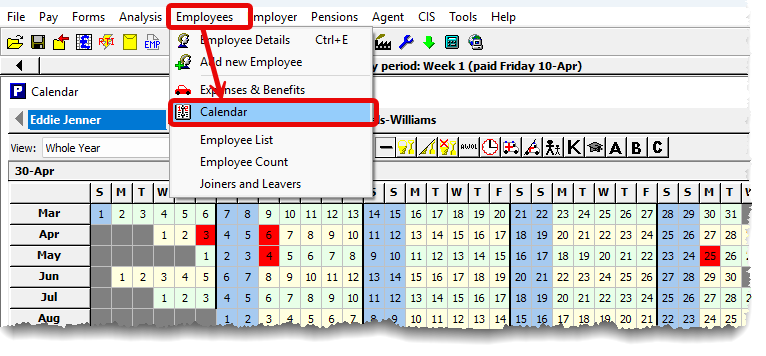
i) From the main menu in Payroll Manager, click ‘Employees‘ then ‘Calendar‘, and select the relevant employee.
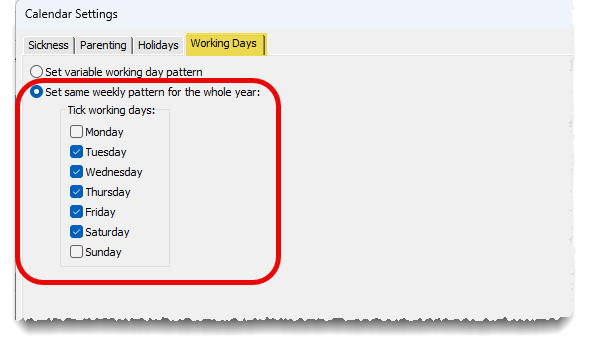
ii) Click on the ‘Settings‘ button on the calendar screen, then click on the ‘Working Days‘ tab, and select the option to ‘Set same weekly pattern for whole year‘. Tick / untick the relevant working days for that particular employee, and click ‘OK‘ when finished. This action sets the working pattern for that employee for the whole tax year. Move on to step 2 of this guide, ‘Adding periods of sickness to the calendar’.
OR: 1B – Setting the working pattern for an employee whose working days are variable:
i) From the main menu in Payroll Manager, click ‘Employees‘ then ‘Calendar‘, and select the relevant employee.
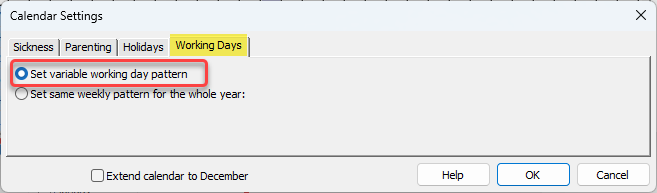
ii) Click on the ‘Settings‘ button on the calendar screen, then click on the ‘Working Days‘ tab, and select the option to ‘Set variable working day pattern’, then click ‘OK’.
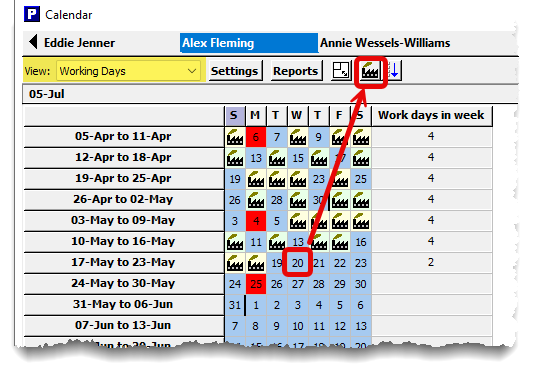
iii) Select the ‘Working Days‘ layout from the ‘View’ drop-down selector (e.g. below). A further screen will appear where you can specify the appropriate working days for that particular employee. Add or remove working days ( denoted by ‘factory’ symbols on the calendar) as appropriate (screenshot, below). The ‘Work days in week’ column on this screen shows how many working days there are within each relevant week (which for SSP calculation purposes runs from Sunday to Saturday). When you have finished change the ‘View’ back to the ‘Whole Year‘ layout.
2. Adding periods of sickness to the calendar
Periods of sickness (which can be as little as one complete day) are entered on the Calendar screen. Payroll Manager will then automatically calculate the amount of SSP to pay (based on the Average Weekly Earnings of the employee), and will add this to the Pay Details screen.
i) From the main menu in Payroll Manager, click ‘Employees‘ then ‘Calendar‘, select the relevant employee, then choose the ‘Whole Year‘ layout.
ii) Click on the day that the employee was sick (or to select a period of sickness, click on the first day of absence then drag the mouse to the right to highlight days that employee was sick). Then click on the SSP (ambulance) button on the toolbar, to mark the selected days as absence due to sickness.
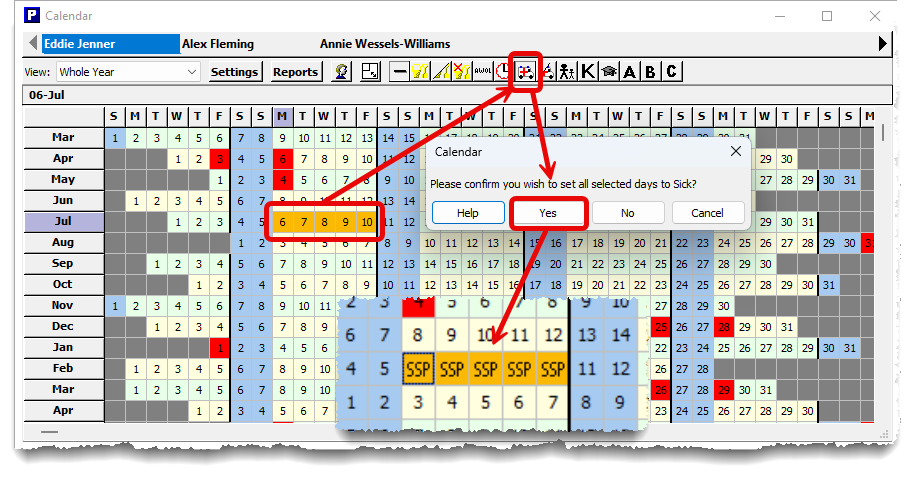
Payroll Manager will use the information entered in steps 1 and 2 of this guide to calculate the amount of SSP due. The ‘SSP’ symbol will be displayed on the calendar screen for days on which SSP is due. SSP will be due for any day that is marked with a ‘sickness’ symbol that has also been set as a working day.
VERY IMPORTANT – FOR PERIODS OF SICKNESS IN THE FIRST 8 WEEKS OF THE 2026-27 TAX YEAR
Note: If the period of sickness that you have entered occurs within the first 8 weeks of the 2026-27 tax year, then you may need to manually enter the ‘Average Weekly Pay’ in order for Payroll Manager to calculate SSP correctly during this period. (HMRC instructions of how to calculate Average Weekly Earnings can be found in the ‘Links’ section at the bottom of this guide).The two situations where you need to manually enter the average weekly pay are:
- Either: If you were not previously using Payroll Manager to process payroll for this particular employee,
- Or: If the employee had a linked period of sickness in the previous tax year – i.e. if the gap between the end of the sickness period in the 2025-26 tax year and the start of sickness in the 2026-27 is less than 56 days
In order to manually enter the ‘Average Weekly Pay’ click on the ‘Settings‘ button on the calendar, then the ‘Sickness‘ tab, and enter a figure into the box marked ‘First 8 weeks average‘ on that screen.
You not need to manually enter an average weekly pay figure if you were using Payroll Manager to process payroll for that employee in 2025-26 and if that employee did not have a linked period of sickness from the 2025-26 tax year, as the software will have carried the relevant pay history forward into the 2026-27 payroll file.
3. Adding SSP to the payslip
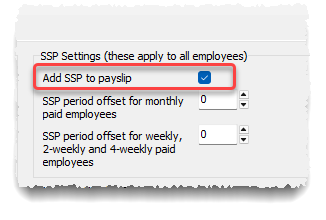
To add SSP to an employee’s payslip, click on the ‘Settings’ button, select the Sickness tab and click in the box ‘Add SSP to Payslip’. (This box will already be ticked, by default).
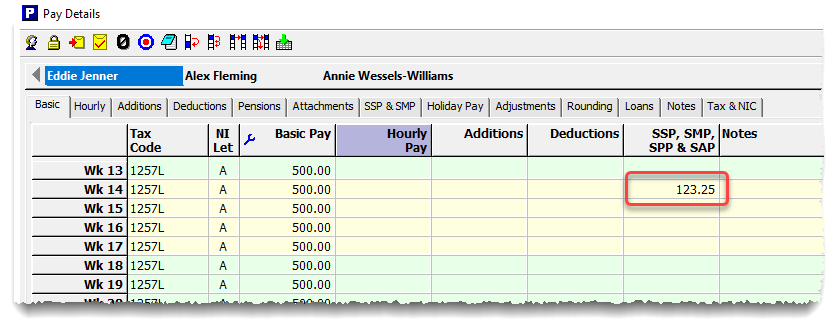
The amount of SSP payable will appear on the Pay Details screen in the ‘SSP, SMP, SPP & SAP’ column for the relevant pay period.
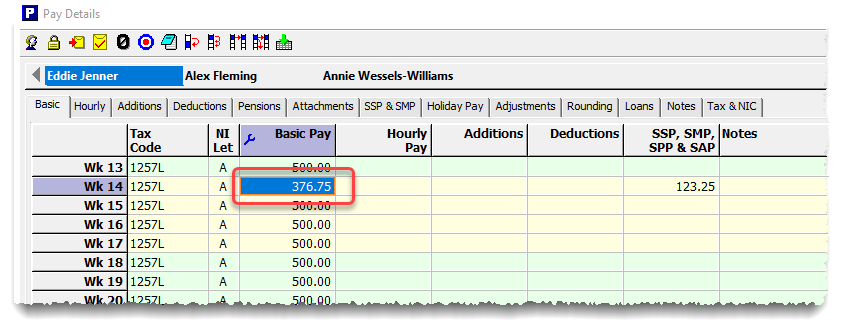
Note that SSP will be added to any other pay currently entered for that employee. If you already have other items of pay entered for the employee for that particular pay period then it may be necessary for you to adjust their pay to account for the fact that the employee was off sick. There are no fixed rules for this, and so Payroll Manager will not reduce an employees pay automatically when they are absent due to sickness. Instead you should make these changes manually according to the contract of employment between the employee and the employer. In the example below, the Basic Pay for week 14 has been manually adjusted by the user (i.e. reduced by £123.25) in respect of the employee absence. If the employee is to receive SSP only, then it may be neccessary to remove any other, pre-entered pay from a pay period entirely.
4. An explanation as to how Payroll Manager calculates SSP
Payroll Manager automatically calculates the amount of SSP to paid based on the information entered in steps 1 and 2, above. The steps of the calculation are as follows:
i) Calculation of the Average Weekly Earnings:
Payroll Manager calculates the employee’s ‘Average Weekly Earnings (AWE)’ in the ‘relevant period‘. The relevant period is defined as follows:
-
- The end of the relevant period is the last normal payday before the first complete day of sickness.
- The start of the relevant period is the day after the last normal payday which falls at least 8 weeks before the end of the relevant period.
So typically, for a weekly paid employee, the ‘relevant period’ includes the last 8 weeks of pay, prior to sickness. For a monthly paid employee, the ‘relevant period’ will typically include their previous 2 monthly payments.
All earnings within the relevant period are added together and then divided to determine the Average Weekly Earnings (AWE).
Average weekly earnings include all earnings on which Class 1 National Insurance contributions are due, or would be due if the employee’s earnings were high enough.
ii) Calculation of the weekly rate of SSP:
The weekly rate of SSP from 6 April 2026 is the lower of either £123.25 (the ‘statutory amount’) or 80% of the employee’s Average Weekly Earnings.
For example:
- if 80% of an employee’s average weekly earnings are £500, then the weekly rate of SSP for that employee is £123.25 (as £123.25 is the lower of £500 and £123.25).
- if 80% of an employee’s average weekly earnings are £100, then the weekly rate of SSP for that employee is £100.00 (as £100.00 is the lower of £100 and £123.25).
These new rules differ from those for previous years, where all SSP was paid at the ‘statutory rate’ (or not at all if the employees earnings were below the ‘Lower Earnings Limit (LEL).)
iii) Determine the daily amount of SSP to be paid:
SSP is due for each full day of sickness that the employee was otherwise due to work, starting with the first day that the employee was sick. (This marks a change from the SSP rules for previous years, where the first 3 working days in a period of sickness were classed as ‘waiting days’ where no SSP was due).
The daily amount of SSP is calculated by dividing the weekly rate (as determined in step 4ii, above) by the number of ‘Qualifying days’ in that week. Qualifying days are those days on which the employee would normally be expected to work, had they not been sick. For example:
- If the weekly rate of SSP for an employee is £123.25, and that employee has a 5 day working pattern, Monday to Friday, then SSP is due at a rate of £24.65 for each qualifying day of sickness (i.e. £123.25 divided by 5).
- If the weekly rate of SSP for an employee is £100.00, and that employee has a 2 day working pattern, Saturday and Sunday, then SSP is due at a rate of £50.00 for each qualifying day of sickness (i.e. £100 divided by 2).
- Note: The ‘daily rate’ of SSP is calculated to 4 decimal places. The total amount of SSP due in a pay period is then rounded up to the nearest penny.
For SSP purposes, when calculating the number of qualifying days, a ‘week’ is defined as running from Sunday to Saturday.
5. Linked periods of sickness
If two periods of sickness (also known as ‘Periods of Incapacity for Work‘ – PIW) are separated by less than 8 weeks (56 days) then they are classed as being ‘linked‘. In cases where one PIW is linked to a previous PIW, it is the Average Weekly Earnings calculation for the first PIW that is used to determine the amount of SSP to pay in the second period of sickness. Payroll Manager counts the number of days between subsequent PIWs to determine whether or not they are linked in this way. The example below shows two (‘linked’) periods of sickness, separated by a gap of 1 week and 3 days.
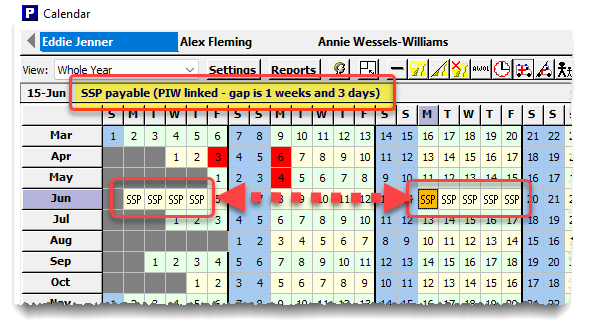
( Note: If you are using Payroll Manager for the first time and have a linked period of sickness in a previous tax year, then you can enter the details of the previous PIW by clicking on the ‘Settings‘ button on the calendar screen, then selecting the ‘Sickness‘ tab, and completing the ‘Sick leave in previous PAYE year ‘ section of the screen.)
Examples of Linking periods for SSP can be found in the SSP examples from 6 April 2026 guide.
6. Checking SSP calculations
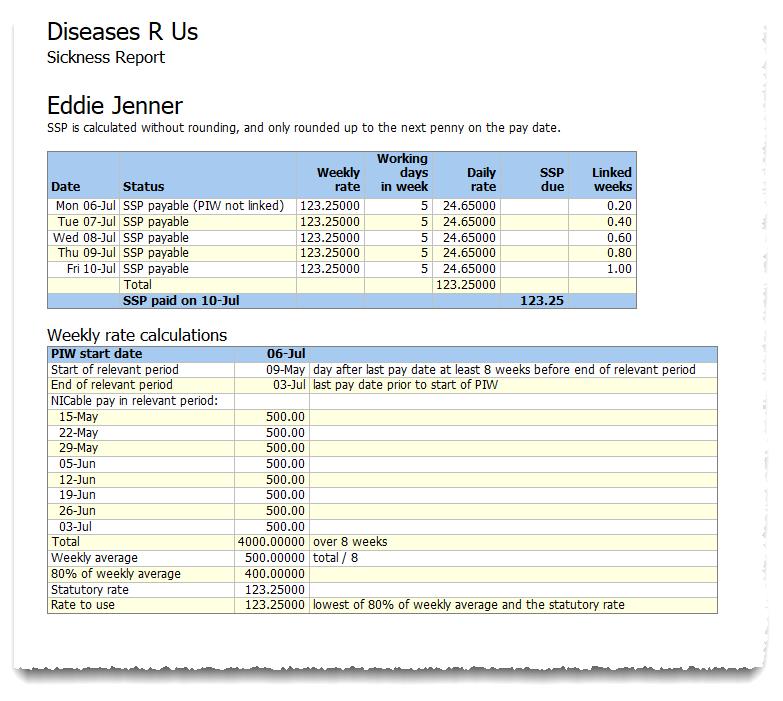
It is possible to see a detailed breakdown of how SSP has been calculated for a particular period of sickness. This information can be obtained in two ways:
- From the ‘Pay Details’ screen: Click on the button at the bottom-left of the screen labelled ‘Click here to show calculation‘, then select the ‘SSP‘ option.
- From the ‘Calendar‘ screen: Click on the ‘Reports‘ button, then select ‘Sickness‘.
This will produce a report showing a full breakdown of all factors affecting the SSP calculation, including the calculation of Average Weekly Earnings, relevant linking periods, number of qualifying days and pay dates (e.g.below)
7. Making adjustments to calculated SSP
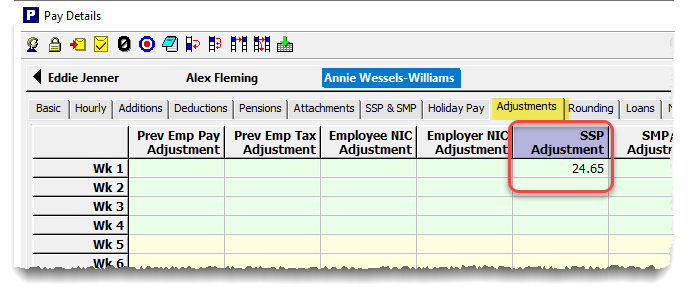
In some circumstances it may be necessary to make an adjustment to the amount of SSP calculated for a particular pay period . Adjustments can be manually entered by clicking on the ‘Adjustments‘ tab on the ‘Pay Details‘ screen. Positive entries in the ‘SSP Adjustment‘ column will add SSP in that period, negative entries will reduce SSP in that period. These adjustments will affect the employee’s payslip and will show on relevant reports.
8. Transitional Protections for those in receipt of SSP prior to 6 April 2026
Some employees (i.e. those with Average Weekly Earnings between £125 and £154.05 per week) who were already in receipt of SSP prior to 6 April 2026 and whose sickness continues from 6 April 2026 onwards would see a direct reduction in their rate of SSP as a result of the new ‘80%’ rule.
The Government is implementing a policy so that employees negatively affected in this way will be ‘transitionally protected’ until:
-
- they return to work because they are fit for work/no longer incapable of work,
- they have exhausted their entitlement (i.e. up to 28 weeks),
- their contract of employment ends,
- the start of the exclusion period due to pregnancy (when the Statutory Maternity Pay or Maternity Allowance period begins).
- During this transitional protection period, an employee who earns between £125.00 and £154.05 per week and was off sick and in receipt of SSP before 6 April 2026 and continues to be off sick on 6 April 2026 will be entitled to the flat rate of SSP at the uprated amount of £123.25 for the duration of their continuous sickness absence.
- This would only apply to a continuous sickness absence – the transitional protection period would end when they return to work, when their SSP entitlement ends, their contract ends or the start of the exclusion period due to pregnancy begins (as set out above) whichever is soonest.
- Should an employee return to work and then go off sick again within a period of 56 days, the new rate (80% earnings or the flat rate whichever is lower) would then apply to the second (linked) period of absence.
- The transitional protection period will last no longer than 28 weeks.
How Payroll Manager handles transitional protections
Payroll Manager will automatically apply the transitional protections in cases where enough data is available. If you are processing SSP in 2026-27 for an employee with average weekly pay below £154.05 who was being paid SSP in 2025-26 and whose sickness is continuing in 2026-27 then you should click on the ‘Settings‘ button on the calendar, select the ‘Sickness‘ tab, and ensure that the ‘Transitional Protections for 2026 apply...’ box is ticked.
Examples of the use of Transitional Protections for SSP can be found in the SSP examples from 6 April 2026 guide.
9. Examples of SSP calculations from 6 April 2026
We have produced a guide which shows examples of how SSP will operate from 6 April 2026. This includes examples of ‘linking periods’, SSP rounding rules, avearge weekly pay calculations, and employees who were previously serving ‘waiting days’. See the SSP examples from 6 April 2026 guide for more details.
10. FAQS
What happens if the SSP calculation is not what I expected? – You should view a report of the SSP calculation (see section 6. ‘Checking SSP calculations’, above). This should help pinpoint any potential data input errors.
Can I reclaim SSP as an employer? – No. The percentage threshold scheme for reclaiming SSP was abolished in 2014. see SPM180100 – Paying and Recovering – SSP: historical information – HMRC internal manual – GOV.UK for more details.
Is there a limit to the amount of SSP that can be paid to an employee?– Yes – entitlement to SSP ceases after a period of 28 linked weeks.
What if someone goes sick immediately after returning from SMP? If the employee returns after 39 week SMP period then the employee will be paid SSP. If the sickness occurs during the 39 week SMP period then SMP is paid instead. Payroll Manager will apply this rule automatically.
Can someone who hasn’t actually started work yet claim SSP? No – to qualify for SSP an employee must have done some work under their employment contract for that employer.
Do half days of sickness qualify for SSP? – No. You cannot count a day as a sick day for SSP purposes if an employee has worked for a minute or more before they go home sick.
Other Moneysoft guides
SSP examples from 6 April 2026 guide.
Statutory Sick Pay before April 2026
External Links
SPM170300 – Average Weekly Earnings (AWE) – SSP: calculating AWE – HMRC internal manual – GOV.UK
New employment rights: Guidance for businesses and workers
The Statutory Sick Pay (General) Regulations 1982
SPM170300 – Average Weekly Earnings (AWE) – SSP: calculating AWE – HMRC internal manual – GOV.UK
Sickness absences that start before and end on or after 6 April 2026 – GOV.UK