

Starting at the beginning of a tax year

This guide gives details of what you should do when starting to use Payroll Manager to process payroll for a company at the beginning of a tax year i.e. where the payroll for previous tax years has been processed either by someone else or using other software. We recommend that you read through the whole guide first before entering any data, as there are a number of different options and possibilities depending on the type and quality of information that you can obtain from the previous payroll processor/software.
1 – Collect information from the previous payroll processor or software package
There are several items of information that you will need to collate in order to start using Payroll Manager to process the payroll for an employer. This includes the following (non exhaustive):
Employer specific information:
- HMRC PAYE reference for the employer – (e.g. 123 / M1234)
- HMRC Accounts office reference for the employer (e.g. 123PB00012345)
- Workplace Pension scheme information (e.g. provider name, references & IDs, Tax relief method, earnings basis for contributions, employee group names. etc..)
- The answer to whether or not the employer is entitled to claim the ‘Employment Allowance‘
- The weekly/monthly pay dates for the employees.
Employee specific information:
- The Payroll ID (if any) of each employee (see section 4 of this guide, below, for more information about the ‘Payroll ID’)
- Schedule of workplace pension deductions / percentages for each employee
- Details of employees that are directors of the company, along with the method used to calculate their National Insurance (standard or alternative method of calculation)
- Details of any expenses / benefits in kind for each employee
- Student /Postgraduate loan information – to include the student loan plan type
- Details of any Attachments of earnings, Deductions of earnings orders etc.
- A schedule of future payments for employees that are currently on parenting leave (SMP, SPP) and for whom these payments have already been calculated.
2 – Create a new blank file and enter employer information
Click ‘File‘ then ‘New‘ from the main menu in Payroll Manager and choose the option to ‘Create a new blank file‘. Enter the name of the employer and select the appropriate tax year. After saving the file you will be asked whether or not the employer is eligible to claim the ‘Employment Allowance’, and then to specify the weekly/monthly pay dates as applicable.
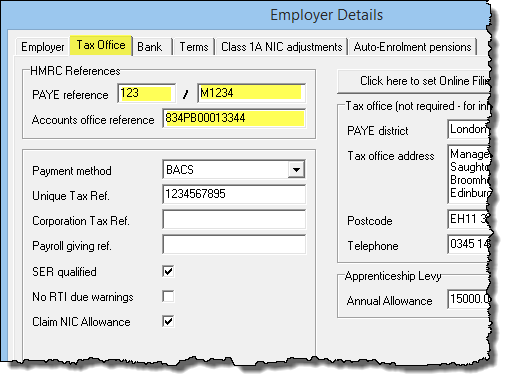
Once the file has been created you should click ‘Employer‘ then ‘Employer Details‘ from the main menu in Payroll Manager to continue adding employer-specific information. You should ensure that the HMRC PAYE reference and Accounts office reference’ are completed correctly as these are required in order to file RTI returns.
3 – Add Pension scheme information (if applicable for that employer).
If the employer has a workplace pension then details of the scheme should be entered before adding employee information. Click ‘Pensions‘ then ‘Pension Scheme Details‘ from the main menu. We have a number of guides specific to each pension provider to assist with the setup – see the moneysoft.co.uk/support-categories/setting-up/ page in the support section of our website to access these guides.
4 – Add details of each employee.
Add details of each employee to the file by clicking ‘Employees‘ then ‘Add new employee‘ from the main menu and working your way through each screen. There are a couple of things that you should be aware of when using Payroll Manager for the first time for that employer:
- The ‘Start date’ of the employee should be their actual start date with the company, and not the date that that you are starting to use Payroll Manager.
- You should ensure that the employee data you enter (name, date of birth, NI number etc) matches exactly with that of the previous system, if applicable, and you should pay particular attention to the ‘Works number / Payroll ID’ field in the ‘Work’ section of the ‘Employee Details’ page – see below for more information:
- If the employee is also a director then make sure that you specify this by ticking the ‘Director’ box when adding the employee.
Payroll ID
The ‘Payroll ID in this employment’ is one of the fields used by HMRC to identify employees contained in an RTI return. It is VERY important that you enter the correct Payroll ID for each employee to prevent possible duplication issues with HMRC database – please read our guide Payroll ID in this employment before proceeding further.
5 – Start processing the payroll for the current pay period.
Once you have entered the employer details and pension scheme details and have added the details of each employee then you are ready to start processing the payroll as normal.
RTI filing
When you come to file the first RTI return for that employer you will see that Payroll Manager has scheduled an ‘EPS’ on the ‘Employers RTI schedule’ to inform HMRC whether or not the employer is claiming the Employment Allowance in that tax year. You should always file this EPS regardless of whether or not a similar submission was sent earlier in the tax year.
6 – Importing data
Instead of manually entering employee data it is possible to import this information if you wish. See our guide importing from other software if you wish to use this method.
Related guides
Starting mid way through the year