

Issuing P60 Forms for your Employees

The P60 summarises an employee’s total pay and deductions for the year. It is a legal requirement that all employees working for you on the last day of the tax year (5 April) receive a copy of their P60 no later than 31 May following the end of the tax year. The P60 can be provided in either a printed or electronic (PDF) format.
1) – First ensure that you have the correct data file open. You can check this by looking at the title bar at the top of the screen, which should display your employer name followed by the year (click ‘File – Open’ if you need to select a different file or wish to produce P60s for a previous year).

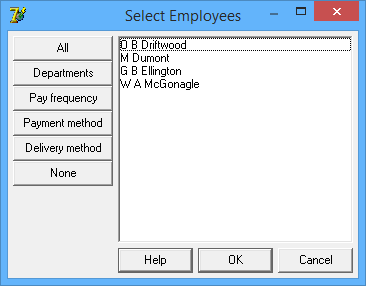
2) – Click ‘Forms – End of year P60’ from the main menu, and select ‘All’ to produce a P60 for each employee and click ‘OK‘
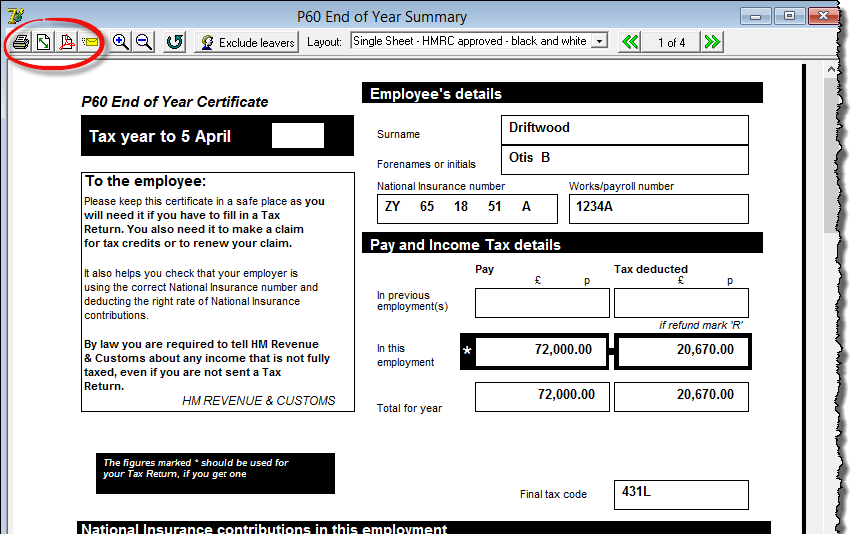
3) – Click on the button at the top of the P60 marked ‘Exclude Leavers’ – you will then be left with a P60 for each employee who was with you at the end of the tax year.

4) – You can then either print, save as pdf or email the P60s as appropriate.
Printing options
– There is no need to buy special stationery, as P60 layouts produced by Payroll Manager have been approved by HMRC for printing on to plain paper.
– Some third party stationery suppliers, such as Hague Direct / FormFactory produce both single page and sealed security P60 forms, which Payroll Manager will print directly on to. To print onto these forms click on the  button on the toolbar and select the option ‘Print to a pre-printed form‘.
– HMRC no longer provide blank P60 forms for you to print on to.
If you wish to send the P60 via email, then please see our guide to Sending payslips and reports (e.g. P60) via email