

Creating A Data File For 2026-27

Payroll Manager stores the payroll information for each tax year in a separate data file on your computer. For example, if your company is called ‘ABC Ltd’, then your payroll information for the period April 2025 to March 2026 would be contained in a file called ‘ABC Ltd 2025-26.pay’. In order to continue processing payroll for a new tax year (i.e. from April 2026 onward) you need to create a new data file ( called ‘ABC Ltd 2026-27.pay’). Payroll Manager does this for you and carries forward all of the relevant payroll information from one tax year to the next. This guide takes you through the process of creating your data file for 2026-27.
Creating the new file
1) – Before creating the new file, it is important to ensure that the last pay period in the 2025-26 file is complete to ensure that the correct figures are carried across to the following year for all employees (you don’t need to have filed your final RTI submission at this point, but you do need to make sure that you have finished entering all of the employee pay details). It is especailly important to make sure that you have entered any continuing periods of sickness or parenting leave on the ‘Calendar’ screen right up until the end of the 2025-26 tax year before creating the file for 2026-27.
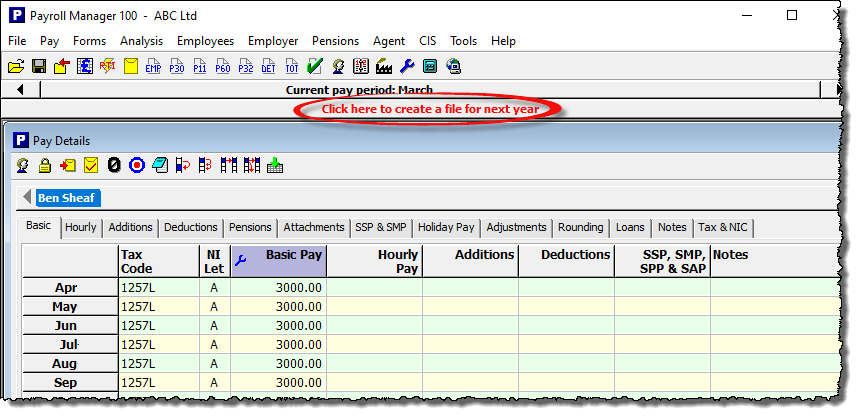
2) – From the beginning of April 2026, a red message will appear just above the ‘Pay Details’ screen prompting you to ‘Click here to create a file for next year’. Click on this message when you are ready to create the file for 2026-27 (if you don’t see this red message or if you wish to create the file before April, you can instead click ‘File – New – Create a file for next year’. If you get an error message telling you that this is not possible, then please update your software first by clicking ‘Help – Program Update’. The update that allows you to create a file for 2026-27 will not be available until the end of February/beginning of March 2026 ).
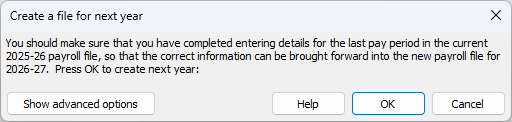
A dialogue box will appear with a reminder to ensure that all pay details for the last period have been entered:-
How data is carried forward
3) – When creating the new file for 2026-27, Payroll Manager will automatically carry forward the details of all employees (except those that have been marked as leavers in 2025-26), and would also ‘uplift’ the Tax Code for each employee according to HMRC rules if appropriate (in the Autumn Statement of 2025 the Chancellor announced that there will be no uplifts for 2026-27).
Calendar items such as Sick, Maternity and Paternity Pay along with holiday details are also carried forward to the new year. Details of Student Loan deductions, Attachments of Earnings Orders and Holiday balances will also be carried forward to the new year, as well the ‘Employment Allowance’ status of the employer.
By default, Payroll Manager will also ‘copy-over’ the pay from the final pay period of last year into the first pay period of the next year. If, for example, an employee has a Basic Pay of £2000 in Month 12 of 2025-26, then Payroll Manager will automatically populate the Basic Pay column in Month 1 of 2026-27 with £2000 (the same rule is applied to weekly, 2-weekly and 4-weekly paid employees). If you wish to proceed on this basis then click ‘OK’, and go straight to Step 5 of this guide.
(In the rare event that you wish to change the way that Payroll Manager copies data from one year to the next click on the button marked ‘Show advanced options’ which will allow you to choose how the data will be copied over.)
Advanced options
4) – The ‘Advanced Options’ screen allows you to choose from the following options for each data type:-
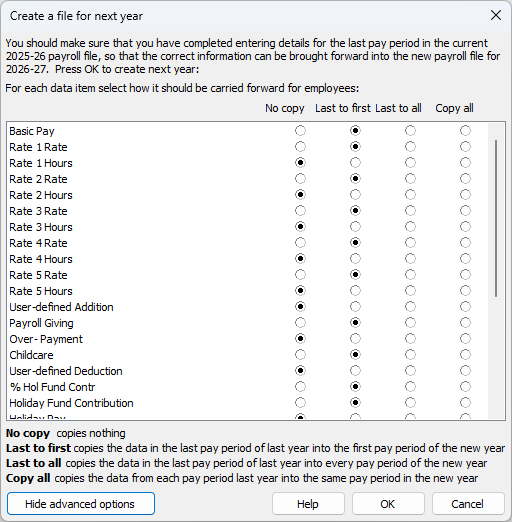
- ‘No Copy’ – Does NOT copy the data item from the previous year’s file.
- ‘Last to first’ – Copies the data item from the last pay period of 2025-26 into the first pay period of 2026-27.
- ‘Last to all’ – Copies the data item from the last pay period of 2025-26 into ALL pay periods in 2026-27.
- ‘Copy all’ – Copies data items from each pay period of 2025-26 into the corresponding pay period of 2026-27.
When you have selected how you wish the data to be copied over, click ‘OK’ to proceed.
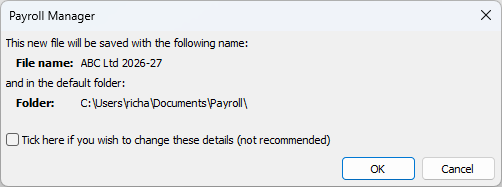
5) – Payroll Manager will show the name of the new file (e.g. ABC Ltd 2026-27) and the location in which it will be stored. Click ‘OK’ to save the new file.
6) – And that’s it! The new data file for 2026-27 is now open and ready to use! If at any point you need to go back to view your payroll data for a previous tax year then you can do so by clicking ‘File’ then ‘Open from the main menu in Payroll Manager, and choosing to open the file for the relevant year.
FAQS
Q. I need to change my pay dates – how do I do this?
A. If for some reason you know that you have the wrong pay dates set in the software then you should change them immediately after creating the file for the new year. Click ‘Tools – Pay Dates‘ should you need to do so.
Q. I have a credit with HMRC that I wish to claim in the new year – how do I do this?
A. If you have a credit with HMRC from the previous tax year that you wish to set off against PAYE liabilities in the new year then, with the new file open, click ‘Employer‘ then ‘Previous Year Overpayment to HMRC‘ from the main menu in Payroll Manager and enter the credit amount in the first tax month of the new year.
Q. How do I go back to last year’s file to print a P60 to give to my employees?
A. Should you need to access the previous year file (e.g. to file your final RTI submission or to print P60 forms) you can do so by clicking ‘File – Open’ from the main menu.
Q. I wish to change the pay frequency of an employee how do I do this?
A. If you have not yet paid anyone in tax year 2026-27 then you can change their pay frequency from the ‘Employees – Employee Details – Payment‘ screen of the 2026-27 payroll file. You will need to delete any pay that may be on the ‘Pay Details’ screen in 2026-27 for such employees before doing so, otherwise this section will be ‘greyed-out’.
Related Payroll Manager Guides
Filing the last RTI return for 2025-26